Screenshot to Text Converter
Upload an app screen, website capture, chat image, presentation slide, or terminal screenshot. Turn text you cannot select into editable content you can copy or download.
Crop private or unrelated screen areas before uploading whenever possible.
Extract text from the screens you use every day
Extract visible text from screen captures when normal copy and paste is not available.
App Screenshot OCR
Copy text from mobile apps, desktop apps, settings screens, dashboards, and interface captures.
Web Page Screenshot OCR
Extract text from website screenshots, browser captures, landing pages, and online articles saved as images.
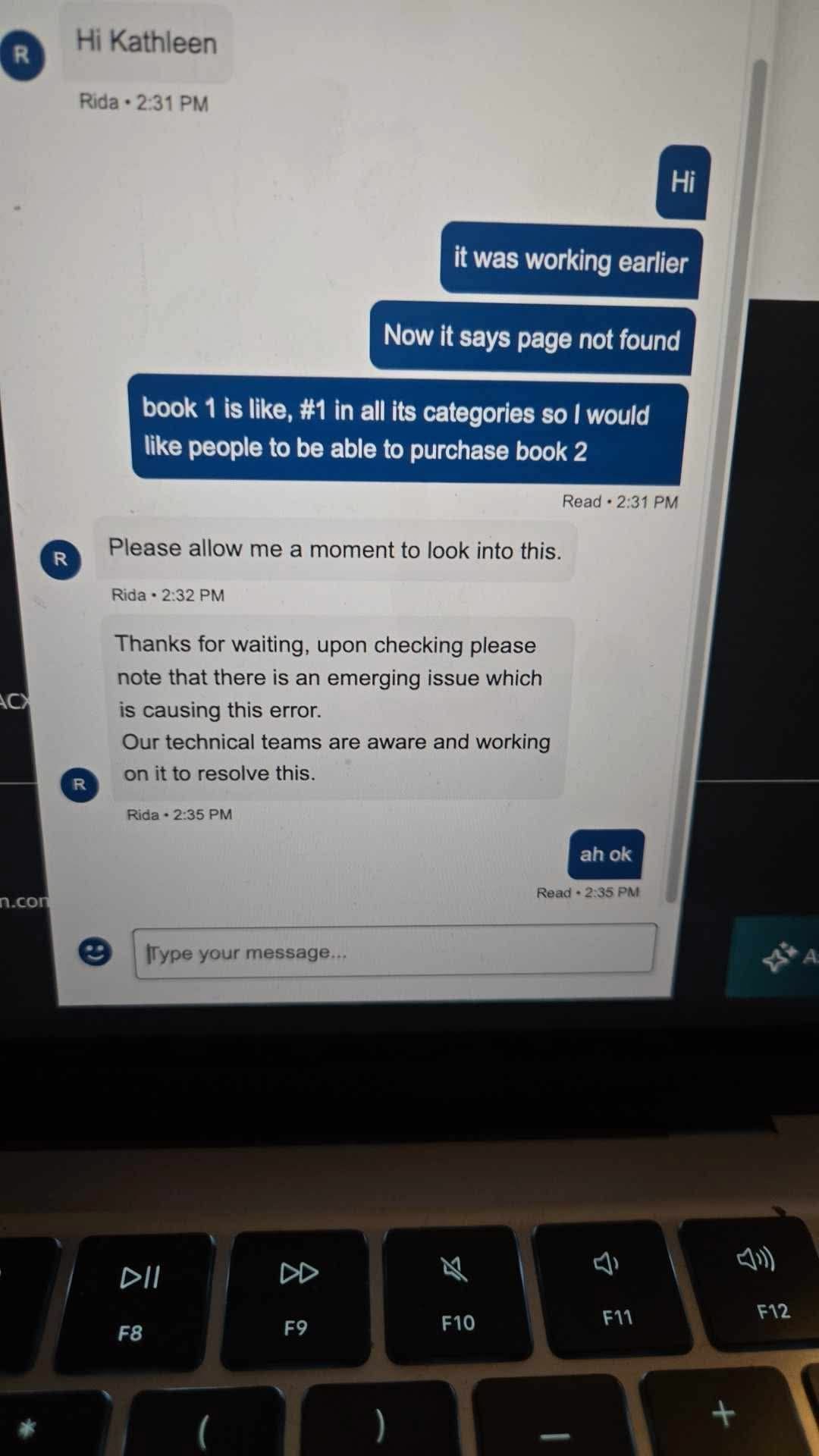
Chat Screenshot OCR
Turn chat screenshots, message images, comments, and social media captures into editable text.
Error Message OCR
Copy text from error dialogs, logs, terminal screenshots, bug reports, and support screenshots.
Slide Screenshot OCR
Extract text from presentation slides, lecture screenshots, webinar captures, and online course images.
Image to Text
Need broader image OCR? Extract text from photos, scans, labels, menus, and uploaded images.
Screenshot to text example
How it works
Upload a screenshot, extract visible text, and use the result.
Upload your screenshot
Add a screenshot from your phone, computer, browser, app, chat, slide, or support ticket. PNG, JPG, WEBP, and HEIC files are supported.
Extract screen text
The OCR engine reads the visible text in the screenshot and prepares it for review, copying, or export.
Copy or export
Review the extracted text, fix anything unclear, then copy it or export the result as TXT, DOCX, or Markdown.
When screenshot OCR works best
Clear, full-resolution captures usually need fewer corrections than scaled, compressed, or visually crowded screenshots.
| Needs extra review | Best input |
|---|---|
| Tiny text in a full-page capture | Sharp screenshots at original resolution |
| Compressed or blurred shared images | Readable contrast between text and background |
| Text covered by menus or annotations | A focused crop with complete lines |
| Code, URLs, and similar-looking characters | One clear app, message, slide, or error view |
Built for real-world screenshot tasks
Use screenshot OCR when the text you need is visible on screen but cannot be selected, copied, or exported directly.

Copying app and website text
Extract text from app screens, website captures, online dashboards, mobile screenshots, and interface images.

Saving errors and support details
Copy error messages, system dialogs, terminal output, bug reports, and support screenshots without retyping them.

Turning slides and notes into text
Extract text from lecture slides, webinar screenshots, course images, meeting captures, and shared screen recordings.
FAQ
Common questions about extracting text from screenshots.
What is screenshot to text?
What screenshot formats are supported?
How is this different from image to text?
Can I extract text from a phone screenshot?
Can it read code or error messages from screenshots?
Can I export the extracted text?
How do I copy text from a screenshot?
How can I improve screenshot OCR results?
Are uploaded screenshots stored?
Copy text from screenshots in seconds
Upload an app screenshot, web capture, chat image, slide, or error message and turn visible text into editable output.