PDF to Text Converter
Upload a scanned document, report, contract, or image-based PDF. Extract readable text page by page, correct it, and download one combined result.
For structured rows and columns, use PDF to Table or PDF to Excel instead.
Extract document text without losing page order
Use general PDF OCR for paragraphs, forms, reports, and archive documents; choose a focused table or handwriting tool when structure matters more.
Scanned PDF OCR
Extract text from scanned PDFs where the page is saved as an image and normal copy and paste does not work.
Multi-page PDF Processing
Process PDF files page by page, review extracted text, and work with longer documents when needed.
PDF to Table
Extract table-like content from PDF pages and prepare rows and columns for review.
PDF to Excel
Convert tables in PDF files into spreadsheet-ready output for Excel, Sheets, or manual cleanup.
Handwritten PDF to Text
Extract text from handwritten notes, scanned notebook pages, and handwritten PDF documents.
Image-based PDF OCR
Read PDF pages that are made from scanned images, photos, or document screenshots.
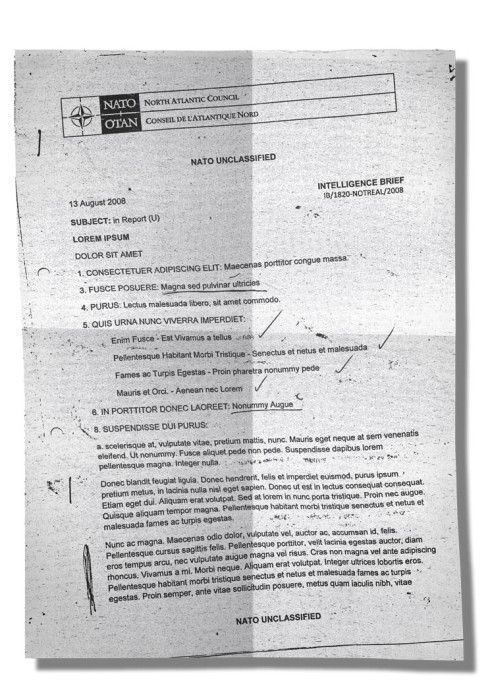
PDF to text OCR examples
How it works
Upload a PDF, extract text page by page, and export the result.
Upload your PDF
Add a PDF file, scanned PDF, image-based PDF, or multi-page document scan. The PDF can contain printed text, tables, forms, or handwritten pages.
Extract text from pages
The OCR engine reads each page, detects visible text, and prepares recognized content for review, copying, or export.
Copy or export
Review the extracted text, make corrections if needed, then copy it or export the combined result as TXT, DOCX, or Markdown.
Choose the right PDF converter
PDF to Text is the general document workflow; specialized tools preserve tables or focus on handwritten pages.
| Use a focused tool | Use PDF to Text |
|---|---|
| Tables that must retain rows and columns | Scanned reports, contracts, and articles |
| Data that needs a multi-sheet XLSX file | Image-based PDFs with paragraphs |
| Documents that are mainly handwriting | Forms and archives requiring searchable text |
| A single JPG, PNG, WEBP, or HEIC image | Multi-page documents needing one transcription |
Built for real-world PDF OCR tasks
Use PDF OCR when text is locked inside scanned pages, document packets, archives, reports, or image-based PDFs.

Digitizing scanned documents
Extract text from scanned reports, contracts, letters, forms, records, and document packets saved as PDFs.

Searching archive files
Make old PDF scans, archive pages, historical records, and stored documents easier to search, review, and reuse.

Reusing PDF table data
Extract rows and columns from PDF tables, statements, schedules, price lists, research tables, and scanned spreadsheets.
FAQ
Common questions about extracting text from PDF files.
What is PDF to text OCR?
Can I extract text from a scanned PDF?
How do I extract text from a scanned PDF?
What is the difference between PDF to text and image to text?
Can I process multi-page PDFs?
Can it extract tables from PDFs?
Can I copy text from a scanned PDF?
What export formats are supported?
How can I improve PDF OCR results?
Extract text from PDFs in seconds
Upload a PDF, scanned document, or image-based PDF and turn visible page content into editable text.