How to Extract Text from a Scanned PDF
Learn how to convert a scanned PDF to editable text with OCR, review recognition errors, and choose the right export for documents and tables.
In this guide
Key takeaways
- Confirm that the PDF contains page images rather than selectable text before running OCR.
- Straight, sharp, correctly ordered pages produce a cleaner scanned PDF to text result.
- Review names, dates, numbers, page breaks and multi-column sections against the original.
- Use table or handwriting OCR when the document structure needs a specialized workflow.
Check whether the PDF is really scanned
Before you extract text from a scanned PDF, confirm that the pages are images rather than normal digital text. Open the file and try to select one sentence. If you can highlight individual words, the PDF probably already contains a text layer. If dragging the pointer selects the whole page, or selects nothing at all, you will need OCR to turn the scanned PDF to text.
This distinction matters because copying embedded text is faster and usually more accurate than OCR. A scanned PDF stores each page like a photograph. The letters are visible to you, but software sees pixels. OCR examines those pixels, recognizes characters and rebuilds editable text that you can search, correct and export.
Digital PDF
Words can be selected, copied and searched without running OCR.
Scanned PDF
Pages behave like images and need OCR before the text can be edited.
Mixed PDF
Some pages contain selectable text while scanned inserts need recognition.
Protected PDF
Text may exist but copying is restricted; check permissions before processing it.
Prepare the scanned PDF for OCR
Good input is the easiest way to improve scanned PDF to text accuracy. Rotate pages so every line is horizontal, remove blank pages and check that the smallest type remains readable at normal zoom. A 300 DPI scan is a useful target for ordinary documents, although a sharp lower resolution file can still produce good text.
Avoid compressing the file repeatedly. Heavy compression creates blocks around letters such as e, c and o, while shadows near the binding can hide the beginning of a line. If the original paper is available, rescanning one poor page is often faster than correcting a long OCR result later.
Scanned PDF preparation checklist
- Every page is upright and appears in the correct reading order.
- Text is sharp enough to distinguish punctuation and small characters.
- Dark borders, fingers, desk surfaces and scanner lids are cropped out.
- The language and document type are known before OCR begins.
- A copy of the original scanned PDF is preserved for comparison.
Convert a scanned PDF to text step by step
A reliable scanned PDF to text workflow separates recognition from review. Upload the original file to a focused PDF to Text converter, process the pages, and keep the page preview beside the OCR result. Comparing both views is much safer than copying the output immediately.
- 1
Upload the original PDF
Use the clearest available file instead of a screenshot or a re-compressed email preview.
- 2
Run page-by-page OCR
Allow the converter to recognize each scanned page in order and preserve page boundaries.
- 3
Review the extracted text
Compare headings, paragraphs, names, numbers and punctuation with the scanned PDF.
- 4
Copy or export
Choose editable text for rewriting, DOCX for document work or Markdown for structured notes.
Choose the right output for the job
The best output depends on what you plan to do after converting the scanned PDF to text. Plain text is convenient for searching and pasting. DOCX is better when paragraphs, headings and editorial changes matter. Markdown works well for knowledge bases, research notes and content systems. Keep the original PDF when visual layout or signatures must be preserved.
| Goal | Useful output | What to review |
|---|---|---|
| Search an archive | TXT or searchable text | Names, dates and page labels |
| Edit a report | DOCX | Headings, paragraphs and lists |
| Publish notes | Markdown | Structure, links and special characters |
| Reuse table data | XLSX or CSV | Rows, columns and merged cells |
If the document is mostly tables, a general scanned PDF to text process may flatten every value into reading order. Use PDF to Table or PDF to Excel when row and column structure matters more than continuous prose. If the source is a photo or screenshot, follow the image table to Excel guide.
Review the errors that OCR often misses
Even a clean scanned PDF to text result needs a short quality check. OCR can substitute zero for O, one for l, or rn for m. It may join words across a page fold, drop a faint decimal point or place a header in the middle of a paragraph. These small changes can alter names, totals and legal meaning.
- Search for unusual symbols and repeated spaces.
- Compare every date, amount, account number and reference code.
- Check the first and last line of each scanned page.
- Review hyphenated words that cross line or page breaks.
- Keep uncertain text marked until someone verifies the source.
For a long file, sample several pages from the beginning, middle and end. If the scan quality changes, review each quality group separately. A typewritten report may need only spot checks, while a faded newspaper, receipt or historical record needs closer comparison.
Handle columns, tables and handwritten notes
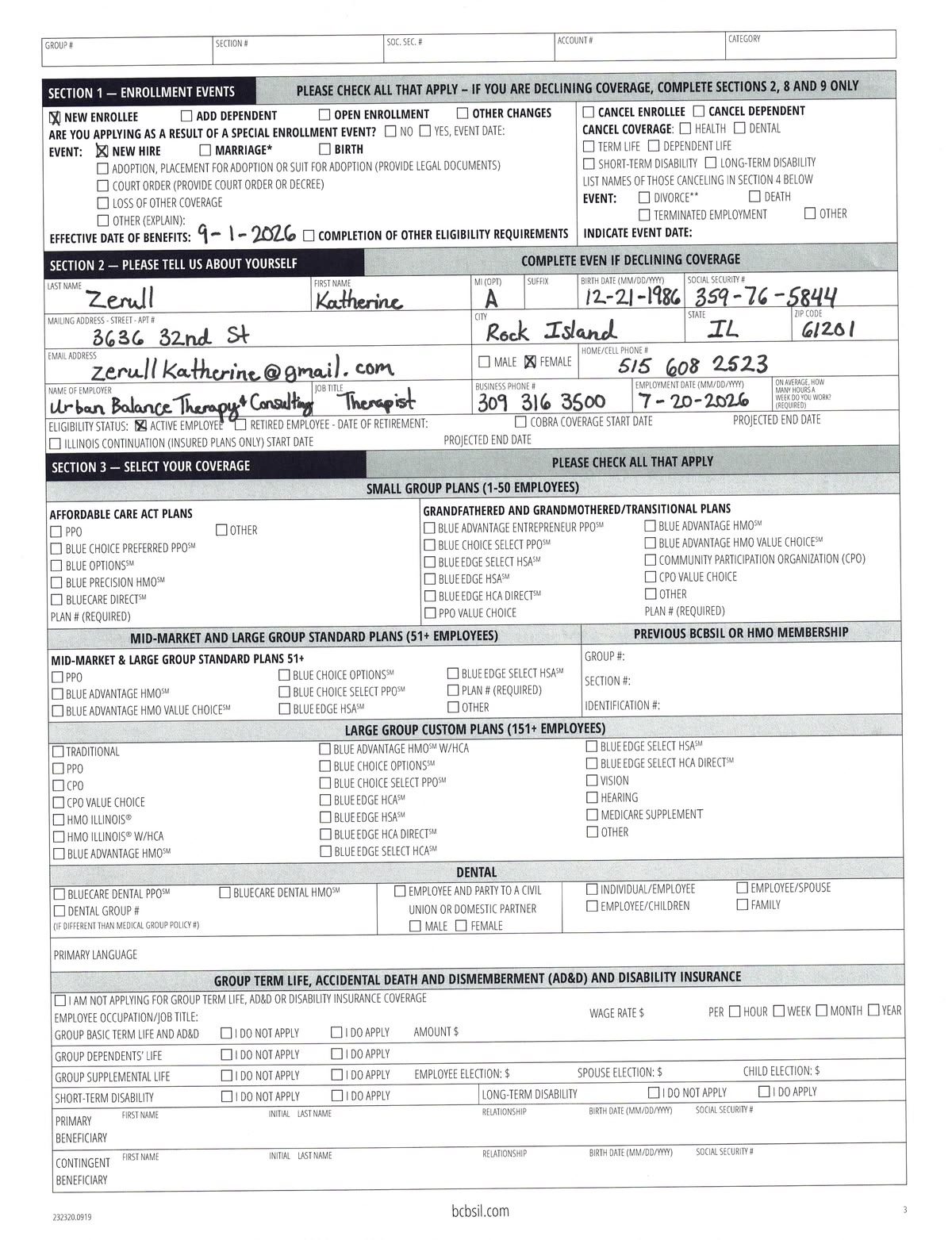
Complex pages are where scanned PDF to text tools differ most. Two-column reports can be read across both columns instead of down one column at a time. Forms may separate labels from answers. Tables can lose borders, and marginal notes may appear inside the main paragraph.
Choose a specialized workflow when the page has a dominant structure. Use table extraction for statements and schedules, and use Handwritten PDF to Text for notebooks, filled forms or handwritten annotations. Dividing the task by document type usually creates cleaner output than forcing every page through one generic OCR setting.
Process a collection without losing page context
When an archive contains many files, establish a naming rule before you convert each scanned PDF to text. Keep the source filename in the export, record the processing date and retain page markers inside the text. This makes it possible to trace a quotation or correction back to the exact scanned page instead of searching the whole collection again.
Work in small, consistent batches. Review one sample from every scanner, year or document type because image quality can change across a collection. Track files that need manual review in a separate list, and never overwrite the source with the OCR output. A repeatable scanned PDF to text process is easier to audit, resume and hand to another reviewer.
Protect sensitive scanned documents
A scanned PDF may contain addresses, signatures, financial records, medical details or confidential business information. Before using an online OCR service, review its privacy policy, retention practices and account controls. Do not upload a document unless you are authorized to process it.
After converting the scanned PDF to text, store the editable result with the same care as the original. Remove temporary downloads from shared computers, restrict access to exported files and avoid placing sensitive text in public collaboration tools.
Final scanned PDF to text checklist
The process is complete when the text is useful, not merely when OCR stops running. Confirm that every required page was processed, the reading order makes sense and important facts match the source. Save the original scanned PDF beside the corrected output so future readers can verify uncertain passages.
Before you finish
- The extracted text includes every required page in the right order.
- Names, dates, totals and identifiers match the scanned PDF.
- Tables and multi-column sections use an appropriate specialized output.
- The corrected file is searchable, editable and saved in the intended format.
- Sensitive originals and exports are stored according to your privacy requirements.
Related OCR guides
Continue with a workflow for another document or OCR task.
Extract Text from an Image
Use OCR on document photos, scans, and screenshots.
Read guideCopy a Table from an Image to Excel
Preserve rows and columns from a table image.
Read guideExtract PDF Tables to Excel
Convert native or scanned PDF tables into a workbook.
Read guideConvert Handwritten Notes to Text
Digitize notes, notebook pages, and handwriting.
Read guide