How to Copy a Table from an Image to Excel
Learn how to extract rows and columns from a table image, review OCR errors, and export clean spreadsheet data to Excel.
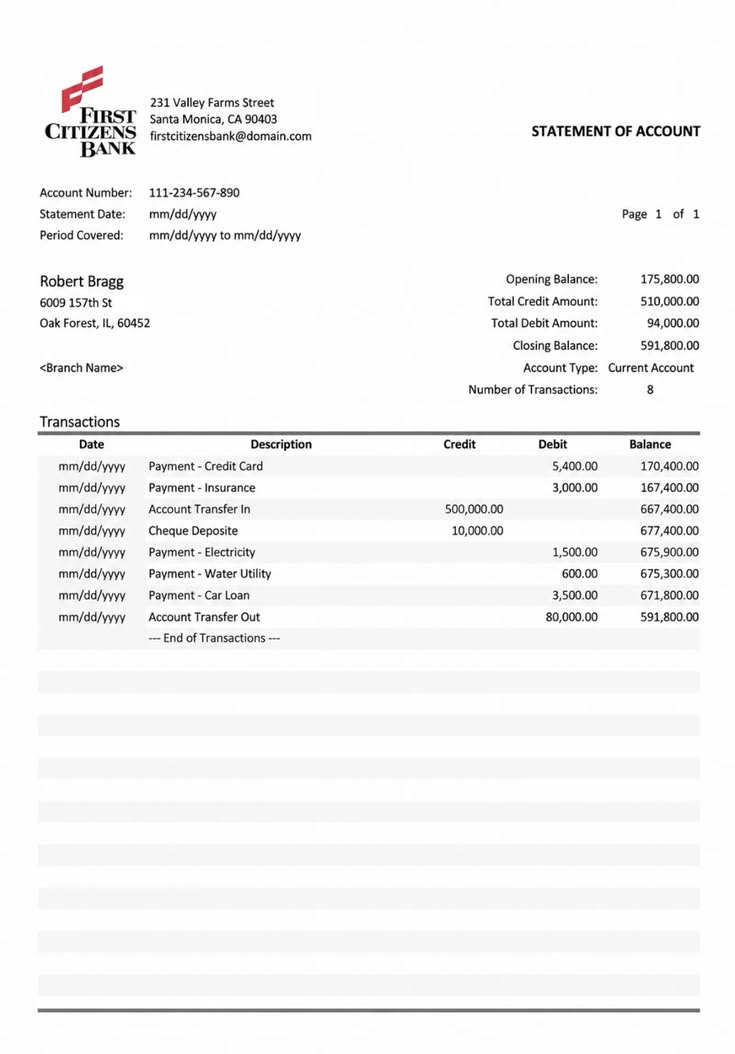
In this guide
Key takeaways
- Use the original screenshot, scan, or well-aligned photo with every header and total visible.
- Table-aware OCR preserves rows and columns more effectively than ordinary text extraction.
- Verify numeric values, merged cells, blank cells, dates, and totals before using the workbook.
- Keep raw extraction, cleaned data, and analysis on separate sheets when auditability matters.
Start with the best available table image
To copy a table from an image to Excel, begin with the clearest version of the source. Use the original screenshot or photo instead of an image copied through several messaging apps. Every extra compression step can blur decimal points, currency symbols and the thin lines that separate columns.
Check that the entire table is visible, including column headers and any totals at the bottom. An image table to Excel conversion needs enough visual context to decide which value belongs in each row. If a wide table has been split across screenshots, keep a shared column visible in both images so the pieces can be matched later.
Original screenshot
Usually the sharpest source for dashboards, websites and app tables.
Document photo
Works best when the paper is flat, evenly lit and parallel to the camera.
Scanned page
Provides consistent scale and contrast for printed reports and statements.
Cropped table
Reduces unrelated text while keeping headers, borders and totals visible.
Prepare the image for table OCR
Crop background objects and unrelated paragraphs, but leave a small margin around the grid. Rotate the image until rows are horizontal and correct strong perspective when one side of a photographed page looks smaller than the other. These steps help table OCR identify consistent row and column boundaries.
Increase contrast gently when text is faint. Avoid filters that remove light grid lines or turn small punctuation into solid blocks. For image table to Excel work, a missing decimal point can be more damaging than a misspelled label, so zoom in and confirm that small numeric characters remain distinct.
Image preparation checklist
- Every row, column header and total is inside the crop.
- The table is upright and not distorted by camera perspective.
- Text and punctuation remain sharp at full image size.
- Shadows, fingers, highlights and page folds do not cover cells.
- Only one primary table appears in the image when possible.
Convert an image table to Excel step by step
Use a focused Image to Table converter instead of ordinary text OCR. General OCR may return all words in one paragraph, while table OCR attempts to preserve rows, columns and cell relationships. That structure is what makes the result useful in a spreadsheet. For ordinary printed content, use the guide to extracting text from an image.
- 1
Upload the table image
Choose the original JPG, PNG, WEBP or HEIC file with the clearest visible grid and text.
- 2
Run table-aware OCR
Let the converter detect table boundaries, headers, rows, columns and individual cell values.
- 3
Review the detected table
Compare the editable preview with the image before accepting numbers or merged cells.
- 4
Download the workbook
Export the corrected result as XLSX for Excel or CSV for a simpler data workflow.
Preserve rows, columns and merged cells
Simple grids with one header row usually convert cleanly. Nested headers, merged cells, blank spacer rows and notes inside the table require more review. The image table to Excel result may need a small structural edit even when every character was recognized correctly.
| Image feature | Possible OCR issue | Excel cleanup |
|---|---|---|
| Merged header | Header text may repeat or shift | Merge only after verifying column meaning |
| Blank cell | Neighboring values may move left | Compare every empty position with the image |
| Wrapped text | One cell may become several rows | Join the lines inside the correct cell |
| Multiple tables | Tables may be combined | Export to separate worksheets when available |
Do not recreate decorative formatting before the data is correct. First verify the dimensions of the table, then repair headers and merged cells, and finally apply number formats, borders or colors in Excel. This order keeps visual cleanup from hiding extraction errors.
Handle photos and screenshots differently
A screenshot usually has square edges, even lighting and crisp digital type. Crop browser controls, menus and unrelated dashboard cards before running image table to Excel extraction. If the screenshot is long, capture overlapping sections and preserve the header row in each part.
A phone photo can contain glare, curved paper and perspective distortion. Photograph the page from directly above, use diffuse light and keep the camera far enough away that the entire table stays in focus. For a bound report, flatten the page gently instead of cropping away values close to the binding.
When the source is a PDF rather than an image, use PDF to Excel or PDF to Table. Converting PDF pages into screenshots first can lower resolution and lose multi-page context. For a scanned document that mainly contains paragraphs, follow the guide to extracting text from a scanned PDF instead.
Review numbers before using the spreadsheet
Numeric data deserves the closest review after an image table to Excel conversion. OCR can confuse 0 and O, 1 and l, 5 and S, or drop a minus sign. Thousands separators and decimal separators also vary by locale, so Excel may interpret a recognized number as text or as a different value.
- Compare totals and subtotals with the source image.
- Check negative values, percentages, dates and currency symbols.
- Confirm leading zeros in IDs, postal codes and account numbers.
- Look for rows that shifted after a blank or merged cell.
- Sort a copy of each column to reveal unexpected text or outliers.
Use simple validation formulas after the visual check. A sum can reveal a missing value, while a row count can show whether the image table to Excel output skipped a record. Formulas support review, but they do not replace comparison with the original image.
Organize the Excel workbook
Give each worksheet a short descriptive name and preserve the source filename in a note or metadata sheet. If one image contains several tables, keep them on separate worksheets unless they share identical columns. A clear workbook makes the extraction easier to audit later.
Apply the correct data type to each column. Dates should behave like dates, amounts should be numeric, and identifiers with leading zeros may need a text format. Freeze the header row and enable filters only after the image table to Excel data has been checked.
Raw extraction sheet
Keep a minimally edited copy of the detected rows and columns for reference.
Clean data sheet
Standardize headers, formats and corrected values for normal spreadsheet work.
Source notes
Record the image filename, capture date and any uncertain cells that need review.
Analysis sheet
Build formulas, pivots or charts without changing the reviewed source data.
Protect sensitive table data
Table images can contain financial records, customer details, medical information or internal reports. Confirm that you are authorized to process the file, and review the OCR service's privacy and retention terms before uploading confidential material.
Store the exported workbook as carefully as the source. Spreadsheet data is easier to search, copy and redistribute than an image, so restrict access, remove temporary downloads from shared devices and delete unnecessary copies after the image table to Excel task is complete.
Final image table to Excel checklist
The conversion is finished when the spreadsheet matches the source and behaves like usable data. Review structure first, values second and formatting last. Keep the original image with the workbook so another person can verify important cells or revisit uncertain text.
Before using the workbook
- The number of rows and columns matches the source table.
- Headers, merged cells and blank cells remain in the correct positions.
- Dates, totals, percentages, currencies and negative values are verified.
- Each column uses an appropriate Excel data type and number format.
- The source image and reviewed workbook are stored with suitable access controls.
Related OCR guides
Continue with a workflow for another document or OCR task.
Extract Text from an Image
Use general OCR for printed text in images.
Read guideExtract Text from a Scanned PDF
Convert scanned document pages into editable text.
Read guideExtract PDF Tables to Excel
Move PDF rows and columns into an Excel workbook.
Read guideConvert Handwritten Notes to Text
Digitize handwriting from images and PDFs.
Read guide