How to Extract Text from an Image
Learn how to prepare a photo or scan, extract editable text with OCR, review common errors, and choose the right output format.
In this guide
Key takeaways
- Start with the original, sharpest image and preserve small punctuation and character detail.
- Crop, rotate, and correct perspective before running OCR on a photo or scanned page.
- Use specialized workflows when the image primarily contains a table, screenshot, or handwriting.
- Verify names, dates, numbers, identifiers, and reading order against the source image.
Choose the clearest source image
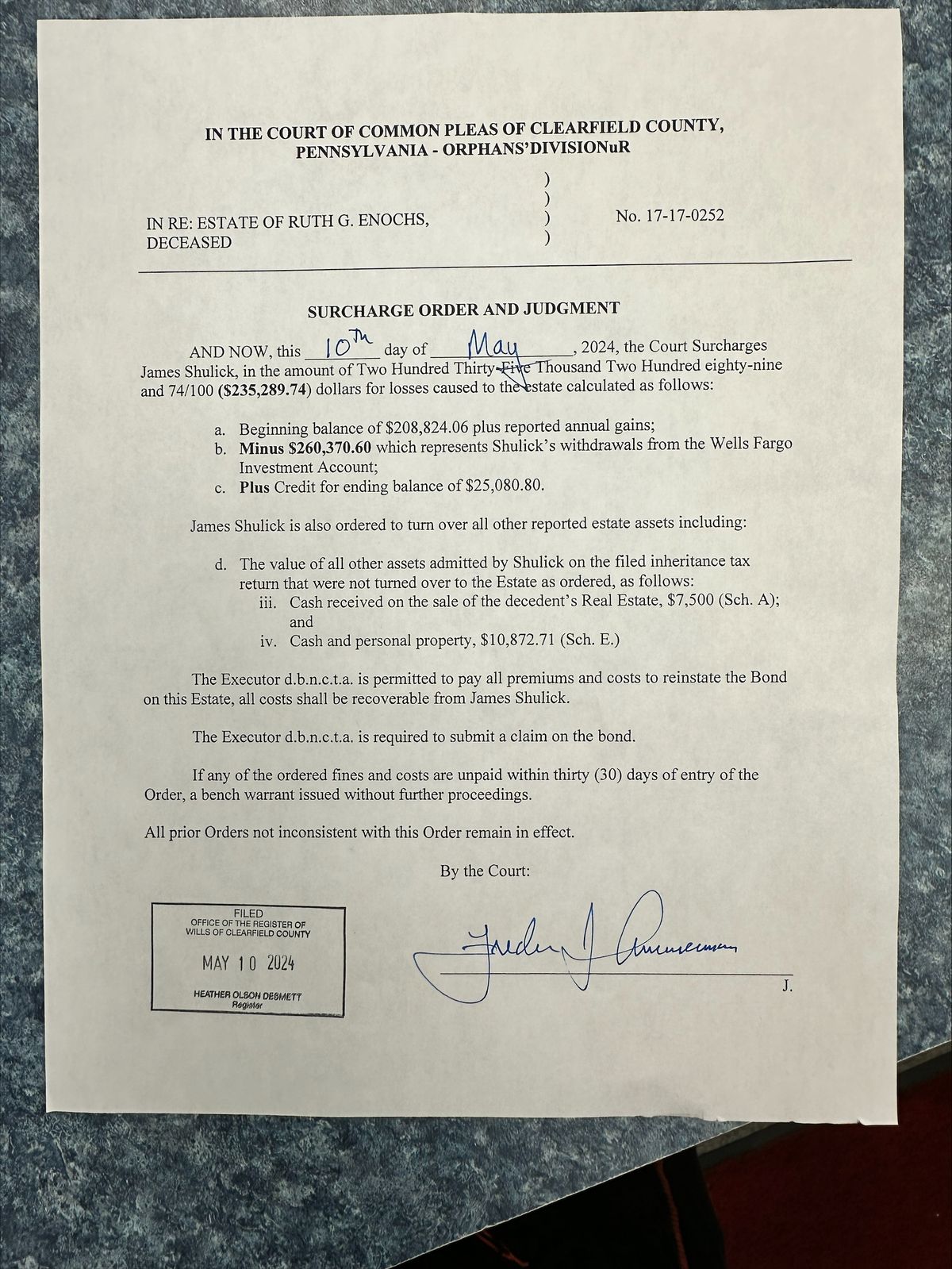
When you need to extract text from image files, start with the original photo, screenshot, or scan. A file downloaded directly from the camera or source application usually contains more detail than a copy sent through messaging or social media. Clear edges help OCR distinguish letters, punctuation, and numbers.
Check the smallest visible text at full image size. If it looks soft or blocky to you, OCR will also have limited evidence. Use the version with the best focus, contrast, and complete page boundaries. Avoid enlarging a tiny image because interpolation creates more pixels without restoring missing character detail. The best way to extract text from image sources is to preserve real detail before recognition begins.
Document photo
Best when the camera is parallel to the page and lighting is even.
Scanned image
Useful for printed pages, forms, letters, receipts, and archive records.
Screenshot
Usually sharp, but menus and interface elements may need cropping.
Compressed image
Can still work, though small type and punctuation need closer review.
Prepare the image before OCR
Crop away desks, borders, browser controls, and unrelated pictures while keeping every required line visible. Rotate the image until the text is horizontal. If a photographed page narrows toward one side, correct the perspective or take another photo from directly above.
To extract text from image content accurately, preserve the difference between letters and the background. Increase contrast gently for faded ink, but avoid strong filters that erase thin strokes or fill spaces inside letters. When paper shows through from the reverse side, placing dark material behind it can make a new photo easier to read.
Image preparation checklist
- The full text area is visible and correctly rotated.
- The smallest characters remain sharp at full size.
- No shadow, glare, fold, finger, or object covers the words.
- Contrast is strong without losing thin punctuation or letter strokes.
- The image language and intended reading order are known.
Extract text from an image step by step
Use a focused Image to Text converter for ordinary printed content such as document photos, labels, signs, menus, receipts, and scanned pages. Keep the image preview next to the editable result so you can compare the recognized words before copying them.
- 1
Upload the original image
Choose the clearest JPG, PNG, WEBP, or HEIC file instead of a re-compressed preview.
- 2
Run image OCR
Let the converter detect text regions and create an editable first draft.
- 3
Review the result
Compare names, numbers, punctuation, headings, and line order with the source.
- 4
Copy or export
Copy corrected text or download it in a format suited to editing and reuse.
Match the OCR workflow to the content
General image OCR is designed for continuous printed text. A specialized tool is more useful when the visual structure carries meaning. Choosing correctly before you extract text from image files can preserve rows, columns, connected handwriting, and screenshot reading order.
| Image content | Recommended workflow | Review closely |
|---|---|---|
| Printed document photo | Image to Text | Paragraph order and punctuation |
| App or website screenshot | Screenshot to Text | Interface labels and small type |
| Rows and columns | Image to Table | Headers, blank cells, and numeric values |
| Notes or handwriting | Handwritten Image to Text | Names and personal letter shapes |
Use Screenshot to Text for app screens, chats, slides, and error messages. Use Image to Table when the result must remain spreadsheet-ready. For written notes, choose Handwritten Image to Text instead of ordinary printed OCR.
Improve OCR for photos and scanned images
Phone photos often have uneven light, curved pages, and perspective distortion. Move the camera farther away and zoom slightly rather than photographing one corner from an angle. Use light from both sides, keep the page flat, and tap the text area to set focus before capturing it.
Scanned images are more consistent, but settings still matter. Around 300 DPI is a useful target for ordinary printed pages. Grayscale can reduce file size, while color may preserve highlights, stamps, or faint annotations. Save a lossless or high-quality version before applying compression.
If you regularly extract text from image archives, group files by scan quality and document type. One OCR setup may work for clean reports but fail on receipts or faded records. Testing one image from each group produces a more reliable workflow. Teams that extract text from image collections should record which preparation settings work for each document group.
Review common image OCR errors
Even a clean result needs review. OCR may confuse 0 with O, 1 with l, or rn with m. It can miss a decimal point, join text across columns, or insert a heading in the middle of a paragraph. These mistakes matter most in names, prices, measurements, addresses, and reference numbers.
- Compare every proper name, date, total, and identifier.
- Search for unusual symbols, repeated spaces, and broken words.
- Check the first and last line near cropped image boundaries.
- Restore bullets, headings, and paragraph breaks where needed.
- Mark uncertain characters instead of silently guessing them.
After you extract text from image pages in a batch, sample files from the beginning, middle, and end. If camera angle or lighting changed, review those groups separately. Keep the original images beside the edited text so another person can verify important details.
Choose and organize the output
Plain text works well for quick copying and search. DOCX is more useful when headings, paragraphs, and editorial changes matter. Markdown suits knowledge bases and structured notes. Preserve the source image when signatures, layout, or visual evidence must remain available.
Name each export so it can be traced to its image. Include the original filename, capture date, or page number, and keep page markers in multi-image documents. A repeatable naming system prevents corrected OCR text from becoming separated from its source.
Quick copy
Use corrected plain text for short labels, messages, and quotations.
Editable document
Use DOCX when paragraphs, headings, and later revision are important.
Knowledge base
Use Markdown for structured notes, documentation, and searchable archives.
Spreadsheet data
Use a table workflow when rows and columns must remain separate.
Handle tables, screenshots, and handwriting
If you extract text from image tables with general OCR, the words may be correct but their cell relationships can disappear. Follow the image table to Excel guide when rows and columns need to remain usable.
For handwritten material, clarity depends on both image quality and the writer's letter shapes. The guide to converting handwritten notes to text explains how to prepare pages, review uncertain words, and organize the corrected notes.
Protect private image content
Images can contain addresses, account details, medical information, signatures, or confidential business records. Confirm that you have permission to process the file, and review the service's privacy and retention terms before uploading sensitive content.
After you extract text from image files, protect the editable output as carefully as the originals. Remove temporary downloads from shared devices, restrict access to private exports, and delete unnecessary copies when the work is complete.
Final image-to-text checklist
The process is complete when the output is accurate, traceable, and useful. Confirm that every required line was recognized, important facts match the source, and the export format fits the next task. Keep the original image with the corrected result for future verification. When you extract text from image files repeatedly, this source-to-output link is essential for quality control.
Before you finish
- The full required text appears in the correct reading order.
- Names, dates, numbers, punctuation, and identifiers are verified.
- Tables, screenshots, and handwriting use the appropriate OCR workflow.
- The export has a useful filename and can be traced to the source image.
- Private originals and extracted text have suitable access controls.
Related OCR guides
Continue with a workflow for another document or OCR task.